If your provider has asked you to track your health in MyChart, by recording data such as heart rate, weight, or blood pressure, and if you have a device supported by the Apple Health or Google Fit apps, you can import the information captured by the device into the MyChart mobile app. MyChart will automatically make the data available to your provider.
What You'll Need:
- A MyChart account
- The MyChart mobile app installed on your mobile device
- A physician-assigned ‘Track your Health’ task in the MyChart system
- A supported health device (weight scale, blood pressure monitor, etc.) and the corresponding supported manufacturer's app for that device installed on your mobile phone
An Overview: Collecting Data in the MyChart App from a Device
- Connect the device to the manufacturer's app; ensure your device is transmitting data to the manufacturer’s app
- Follow the manufacturer app’s directions to export the device data from the manufacturer’s app to Apple Health or Google Fit
- Enable MyChart to connect to Apple Health or Google Fit app to import the data into MyChart
Sample Directions for Connecting Devices
Connecting MyChart mobile app to Apple Health for Apple Watch Heart Rate information
- The Apple Watch automatically feeds heart rate data into the Apple Health app. So, you only need to connect MyChart mobile to Apple Health to transmit heart rate data into MyChart mobile.
Connecting Withings Blood Pressure Device to Apple Health
- Follow the Withings instructions to connect your blood pressure device to the Withings Health Mate app
- Follow the Withings instructions to send the data captured from the blood pressure monitoring device to Apple Health
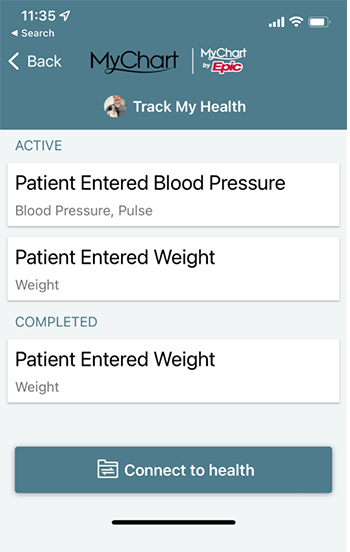
- Log in MyChart, access the “Track My Health” feature and select the “Connect to Health” button
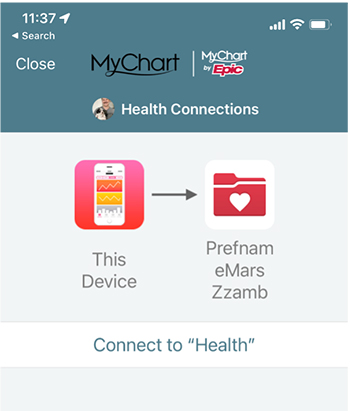
- Select the Connect to “Health” link
- Take a new reading with your device
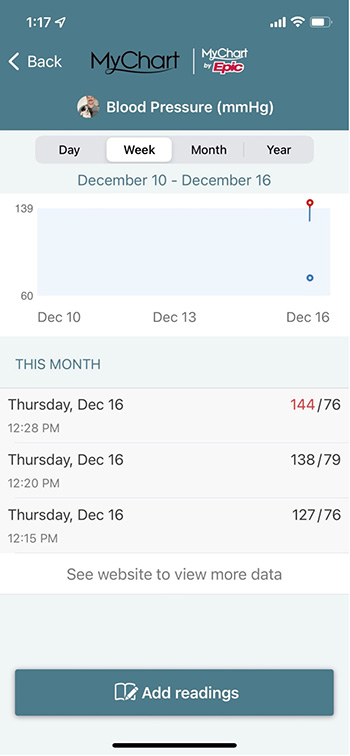
- Check the assigned "Track your Health" task in MyChart mobile to ensure the data is being populated
Troubleshooting
Note: All readings can be entered manually. If you are having problems getting data from your device into MyChart, please manually enter your readings so that your provider can still monitor your readings.
Having issues? Try these solutions:
- Ensure the captured device data is showing in the manufacturer’s app, such as Withings Health Mate.
- Ensure the captured device data is populated in Apple Health or Google Fit.
If you do not see the data then check the app permissions to ensure that the Health app is allowed to access data from the manufacturer’s app.
- If the data is in Apple Health but not showing up in MyChart, check the apps permissions for Apple Health or Google Fit.
Access your medical record 24/7
Download the App!


Apple and the Apple logo are trademarks of Apple Inc., registered in the U.S. and other countries. App Store is a service mark of Apple Inc., registered in the U.S. and other countries. Google Play and the Google Play logo are trademarks of Google LLC.